> For the complete documentation index, see [llms.txt](https://docs.me.bot/llms.txt). Markdown versions of documentation pages are available by appending `.md` to page URLs; this page is available as [Markdown](https://docs.me.bot/using-second-me/data-and-integrations/import-from-notion.md).
# Import from Notion
You can easily import all of your Notion data into Me.bot in one go, both on the web and in the mobile app.
1. Go to **More > Import** on the web or ➕ > **Import Data** on the mobile app , then select **Notion** to proceed.
On the web
On the mobile app
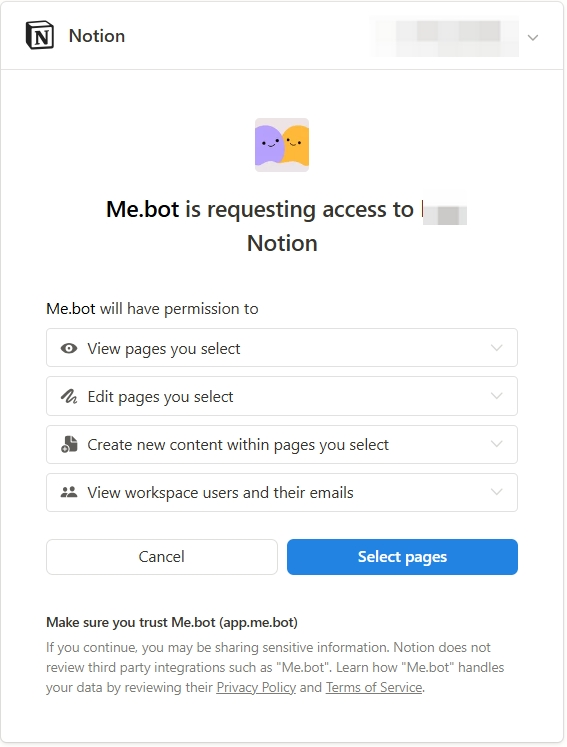
2. **Authorize Access:** Review the Notion import instructions, then click **Connect** to authorize access.
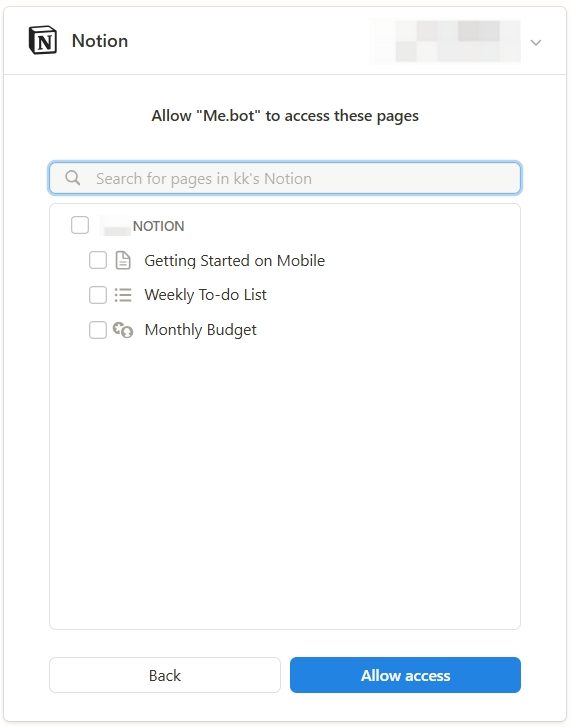
3. **Select Pages to Import:** Select the pages, then click "Allow access" to start the import.
{% hint style="info" %}
Due to Notion’s restrictions, only top-level pages—those located at the root level of your Notion workspace—can be directly selected for import. However, all nested content, such as subpages or child pages under the selected top-level page, will be automatically included. For example:
* If you select a top-level page like "Project A," all its subpages (e.g., "Tasks," "Notes," "References") will also be imported.
* You don’t need to individually select these subpages—they come along with the top-level page.
{% endhint %}
4. **Wait for the Import to Finish**
* The import process may take a few minutes. Feel free to close the window or check back anytime.
* Once done, you can find the imported content in your **Library.**
## Notion Import Limitations
Notion’s flexibility allows for various custom views, layouts, and database structures. When imported into Me.bot, these elements are adapted to fit Me.bot’s interface. This means:
* Special views (like Gallery or Timeline) may be represented in a more streamlined way, with some content appearing as links or attachments.
* Personalized layouts or deeply nested elements may be adjusted to match Me.bot’s organizational style.
* Advanced database relationships or complex structures might be simplified.
Your essential data—titles, fields, and core content—remains intact. We’re continually refining the import process to maintain as much fidelity to your original Notion setup as possible.