> For the complete documentation index, see [llms.txt](https://docs.me.bot/llms.txt). Markdown versions of documentation pages are available by appending `.md` to page URLs; this page is available as [Markdown](https://docs.me.bot/using-second-me/data-and-integrations/import-from-evernote.md).
# Import from Evernote
You can effortlessly bring all your Evernote notebooks into Me.bot on the web.
1. Go to **More > Import** on the Web, then select **Evernote** to proceed.
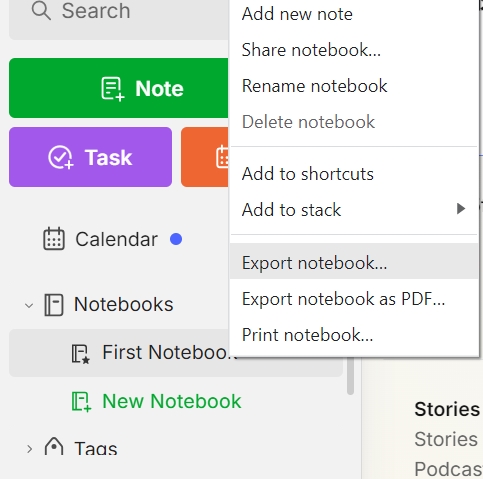
2. **Export from Evernote:** Go to Evernote Notebooks after reviewing the Evernote import instructions. Right-click the notebooks you want to export, then select "Export notebook".
3. **Select Export Options**
* Select "Multiple web pages (.html)" as the file format
* Select all the export note attributes (by default they should all be selected)
* Click "Export"
4. **Select Notes to Import:** Locate your exported notes, compress them into a ZIP file, and upload it to Me.Bot.
{% hint style="info" %}
Free users can import files up to 10 MB into Me.bot, while Pro users can import up to 50 MB.
{% endhint %}
5. **Wait for the Import to Finish**
* The import process may take a few minutes. You can leave the screen or check back anytime.
* Once done, you can find the imported content in your **Library.**
## Evernote Import Limitations
Evernote with documents and recordings will not be directly displayed within the notes after import. Instead, they’ll be saved as downloadable attachments to the corresponding note. You can access these attachments anytime by:
* Opening the imported note.
* Clicking on the attachment to download the file.
This ensures all your important files stay accessible to keep your notes intact and organized.

.png?alt=media&token=0946740d-47e5-4f81-8749-ebaf4fa50330)
