> For the complete documentation index, see [llms.txt](https://docs.me.bot/llms.txt). Markdown versions of documentation pages are available by appending `.md` to page URLs; this page is available as [Markdown](https://docs.me.bot/jp/using-me.bot/data-and-integrations/import-from-apple-notes.md).
# Import from Apple Notes
You can easily import all your Apple Notes into Me.bot on the web by following these steps.
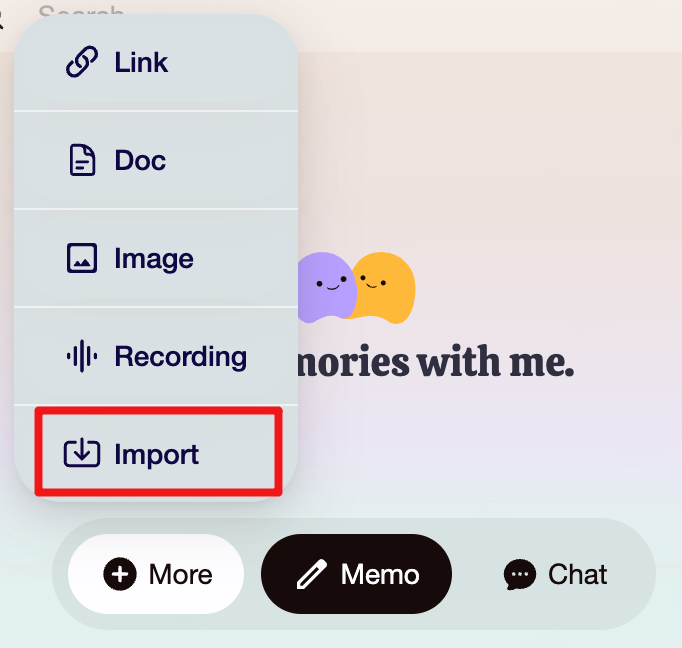
1. Go to **More > Import** on the Web, then select **Apple Notes** to proceed.
2. **Download and Set Up Exporter**
{% hint style="info" %}
**DISCLAIMER:** Exporter is a free third-party app available on the App Store. We are not responsible for the functionality, accuracy, or performance of this application. Please review and comply with Exporter’s terms of service and privacy policy before use.
{% endhint %}
* Download [Exporter](https://apps.apple.com/us/app/exporter/id1099120373?mt=12) from the App Store.
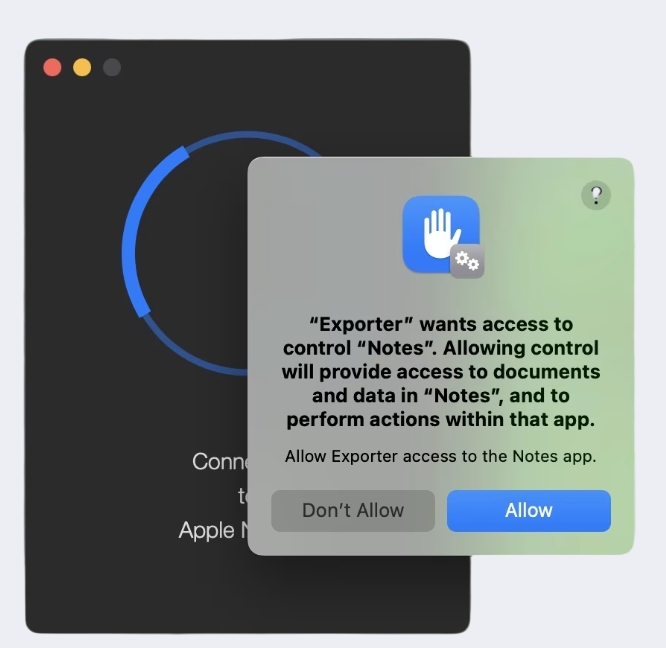
* After downloading, grant Exporter access to your Apple Notes.
3. **Download All the Notes**
Click the arrow in Exporter to download all your notes.
4. **Select Notes to import:** Select the notes, compress them into a ZIP file, and upload them to Me.bot.
{% hint style="info" %}
Free users can import files up to 10 MB, while Pro users can import up to 50 MB.
{% endhint %}
5. **Wait for the Import to Finish**
* The import process may take a few minutes. You can close the window or check back later.
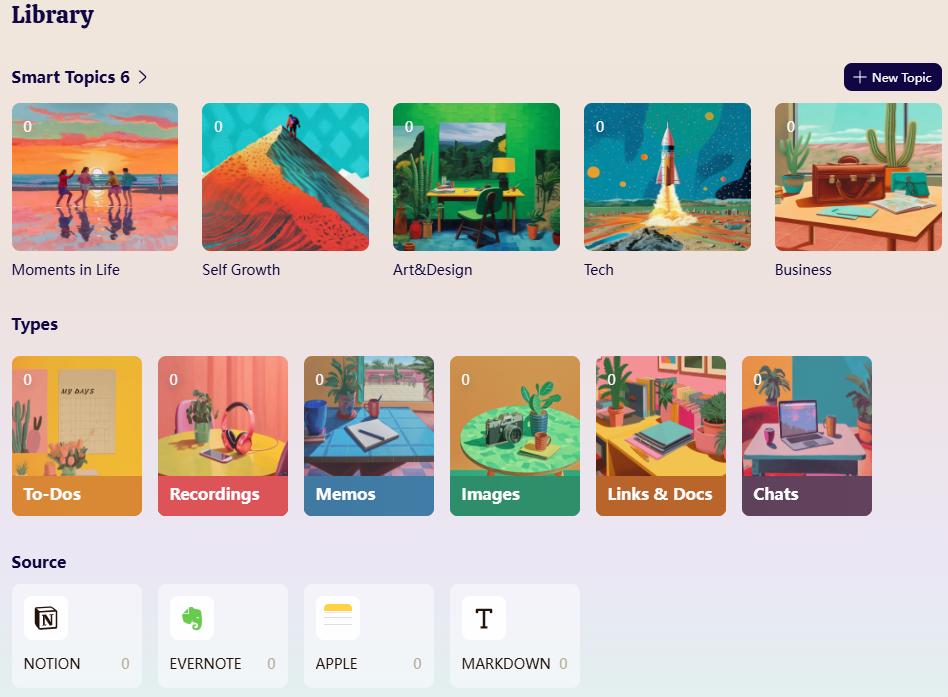
* Once completed, you’ll find the imported content in **Library.**
## Apple Notes Import Limitations
1. **Formatting Issues**
When exporting Apple Notes using tools like Exporter, markdown formatting issues may occur, such as:
* **Bold Text Errors:** Extra markdown symbols (e.g., `**`) may be added.
* **Line Break Issues:** Paragraphs may have unexpected spacing or empty lines.
* **Wrong Symbols:** Special characters (e.g., `#`) might appear or change.
These issues stem from how Exporter handles markdown formatting. Since Me.bot imports notes as they are exported, any inconsistencies will remain visible after import.
2. **Handling Attachments**
Apple Notes with documents and recordings will not directly display within the imported notes. Instead, they’ll be saved as downloadable attachments linked to their respective notes. To access these attachments:
* Open the imported note.
* Click on the attachment to download the file.
This approach ensures that all your important files remain accessible while keeping your notes organized and intact.
.png)